Appearance
Managing Environments in Forge
Actions in the Forge dashboard always run within a specific environment. While working in the dashboard, you'll be in a particular environment and only see and execute actions for that environment.
Switching Environments
You can easily switch between environments using the environment switcher in the navigation bar.
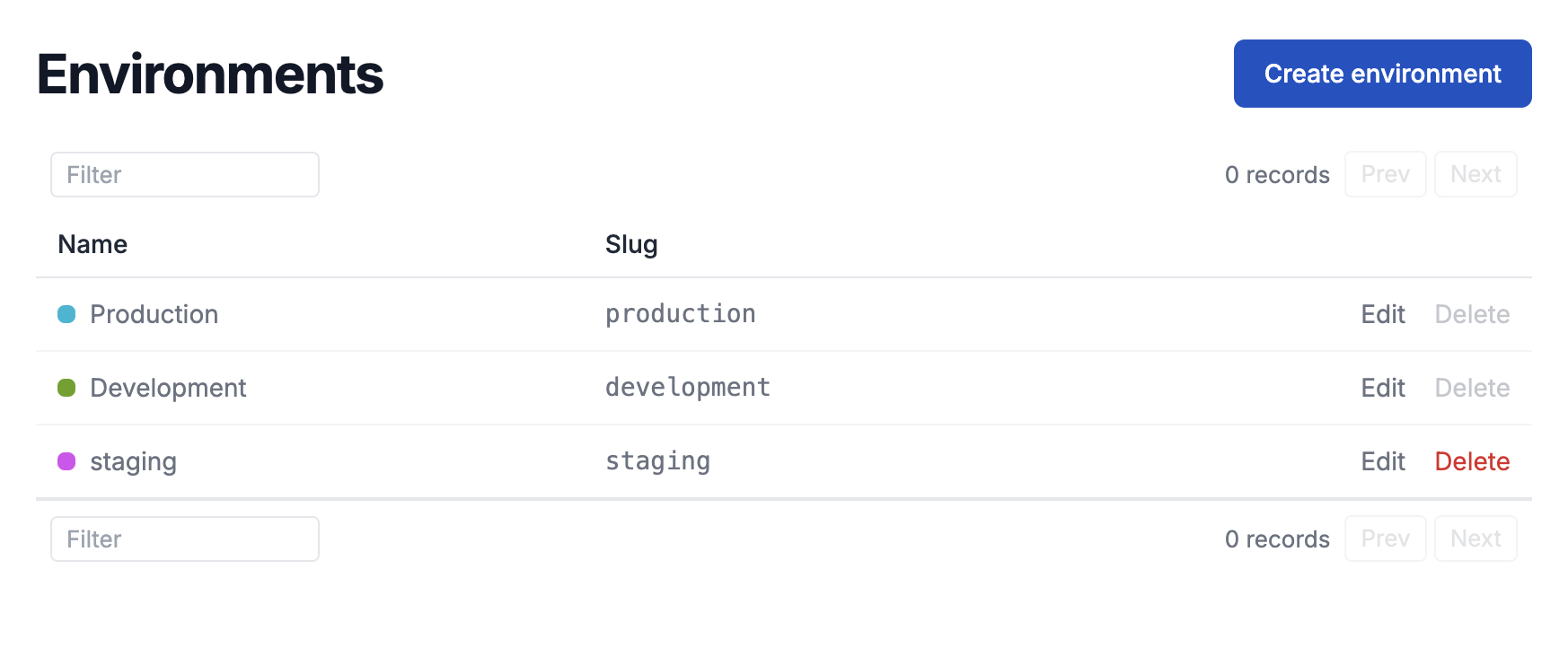
By default, Forge provides two environments:
- Production: For live actions shared across your organization.
- Development: A local development environment for developing actions.
INFO
Each developer or admin role has their own Development environment, along with a unique API key known as the Personal Development Key.
Choosing an Environment
Running in Development
To run your app in Development, use your Personal development key when creating the Forge instance. In Development mode:
INFO
- Only you can access and run the app instance connected to your Personal development key.
- Run histories for actions are not stored.
- Notifications are not sent but logged to the action's toolbar at the bottom of the screen.
Running in Production
To run your app in Production or your other non-development environments, use a Live API key when creating the Forge instance. In Live mode:
INFO
- Actions are visible in your organization's dashboard.
- Actions can be viewed and executed by your team.
- Run histories and their results are logged on the History page in the dashboard.